Create an AppSheet App from Excel

Step-by-step guide to creating your first AppSheet application using an existing Excel file

Share:

Overview

In this guide, you will learn how to create a fully functional AppSheet application using an existing Excel file as your data source. AppSheet is a powerful no-code platform from Google that allows you to build mobile and web applications without writing any code.

This guide is perfect for beginners who want to automate their business processes and transform Excel spreadsheets into interactive applications.
What you'll learn:

  • How to prepare your Excel file for AppSheet
  • How to create a new AppSheet application
  • How to import data from Excel
  • How to configure tables and columns
  • How to create a basic app interface
  • How to test and share your application
Duration: approximately 30-45 minutes

Prerequisites

Before you begin, make sure you have:

  • Google Account β€” for accessing AppSheet
  • Excel file (.xlsx) with your data
  • Google Drive β€” for storing your file

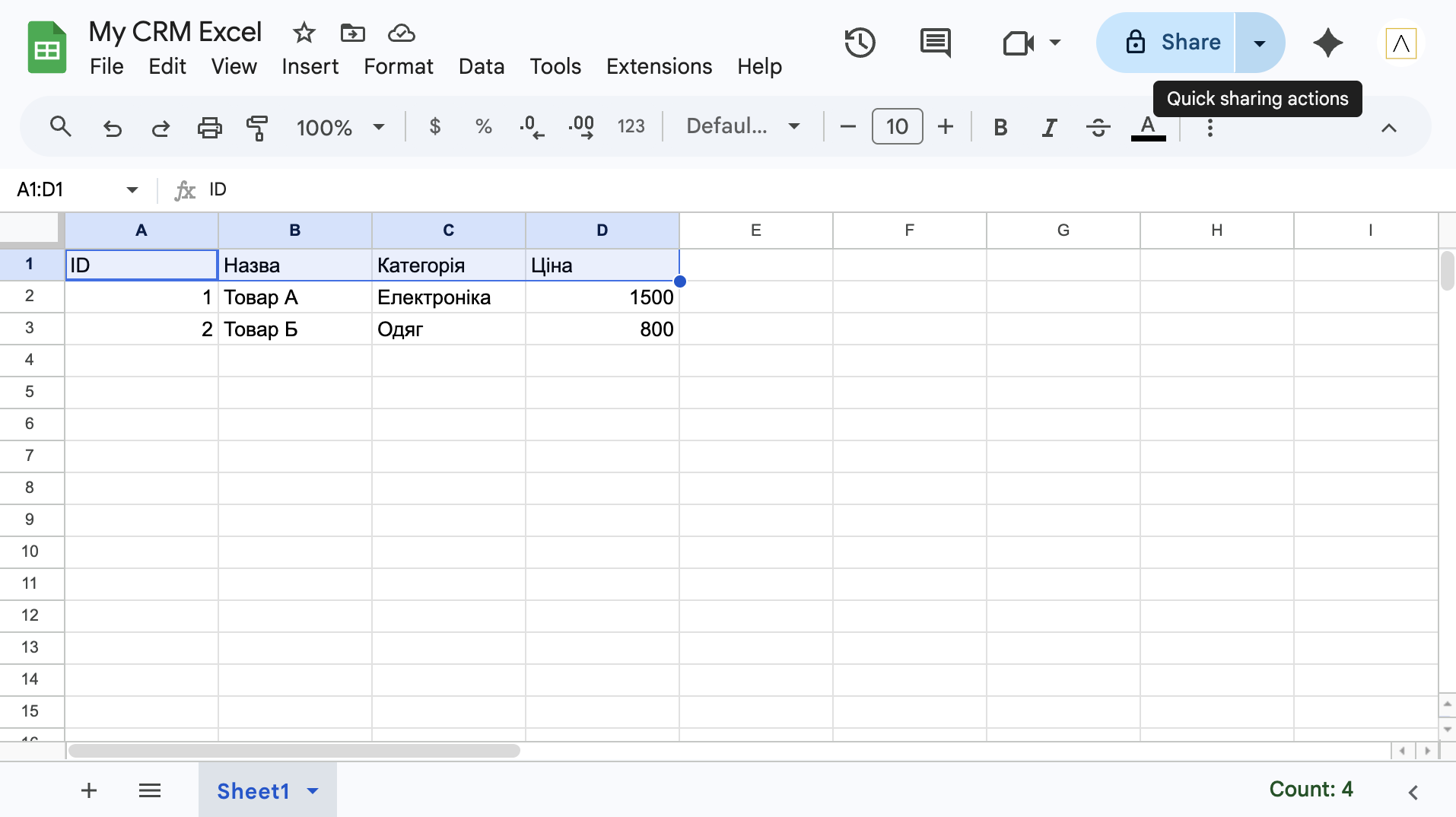
Excel file requirements:

  • First row must contain column headers
  • Each column must have a unique name
  • Data should be structured (no merged cells)
  • Ideally have a column with unique identifier (ID)
Example data structure in Excel
1

Upload Excel File to Google Drive

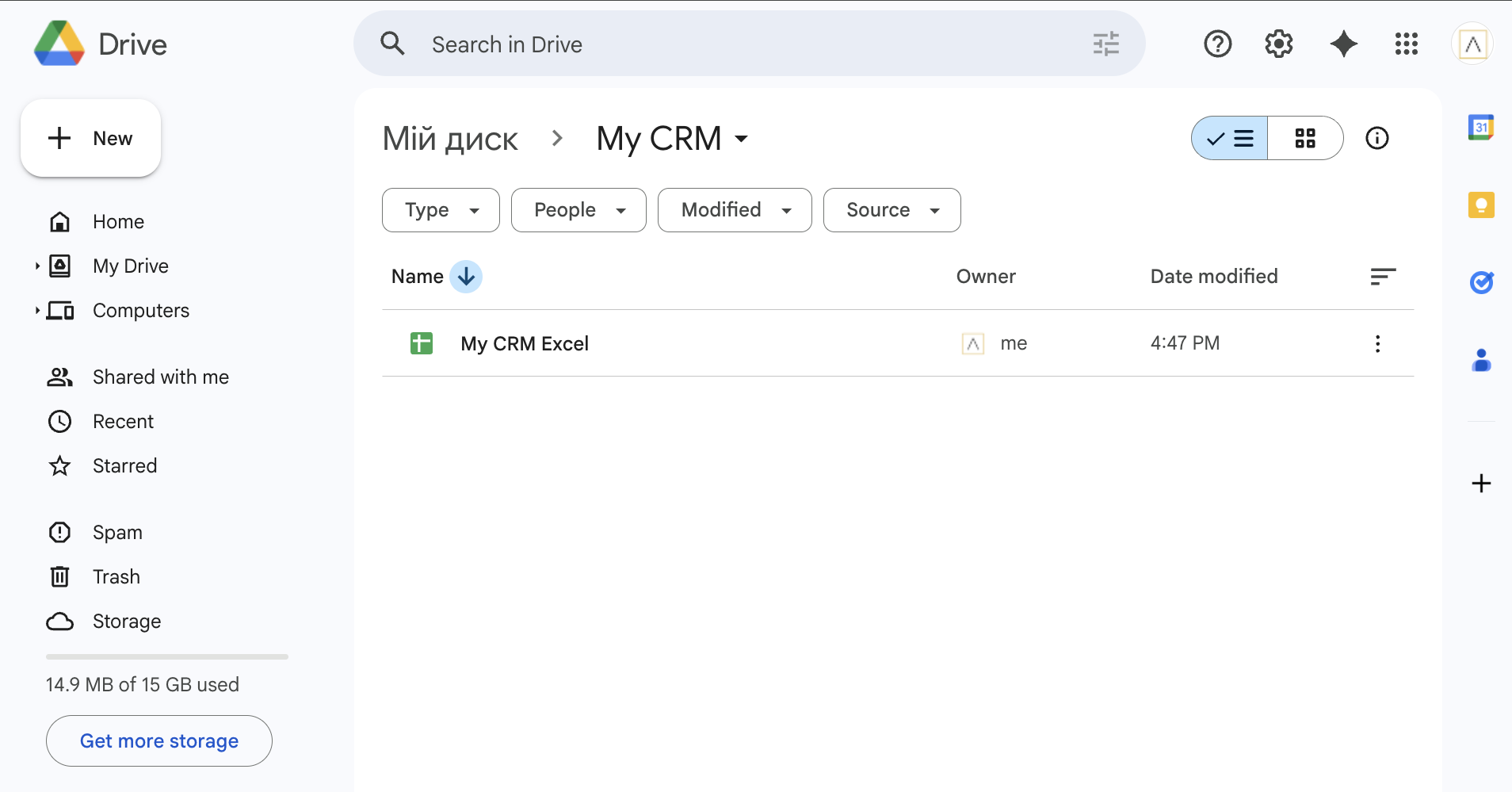
First, you need to upload your Excel file to Google Drive:

  1. Open Google Drive (drive.google.com)
  2. Click the "+ New" button in the top left corner
  3. Select "File upload"
  4. Find and select your Excel file (.xlsx)
  5. Wait for the upload to complete

Tip: We recommend creating a separate folder for AppSheet files to keep everything organized.

Uploading Excel file to Google Drive
2

Open AppSheet and Create New App

Now let's create a new app in AppSheet:

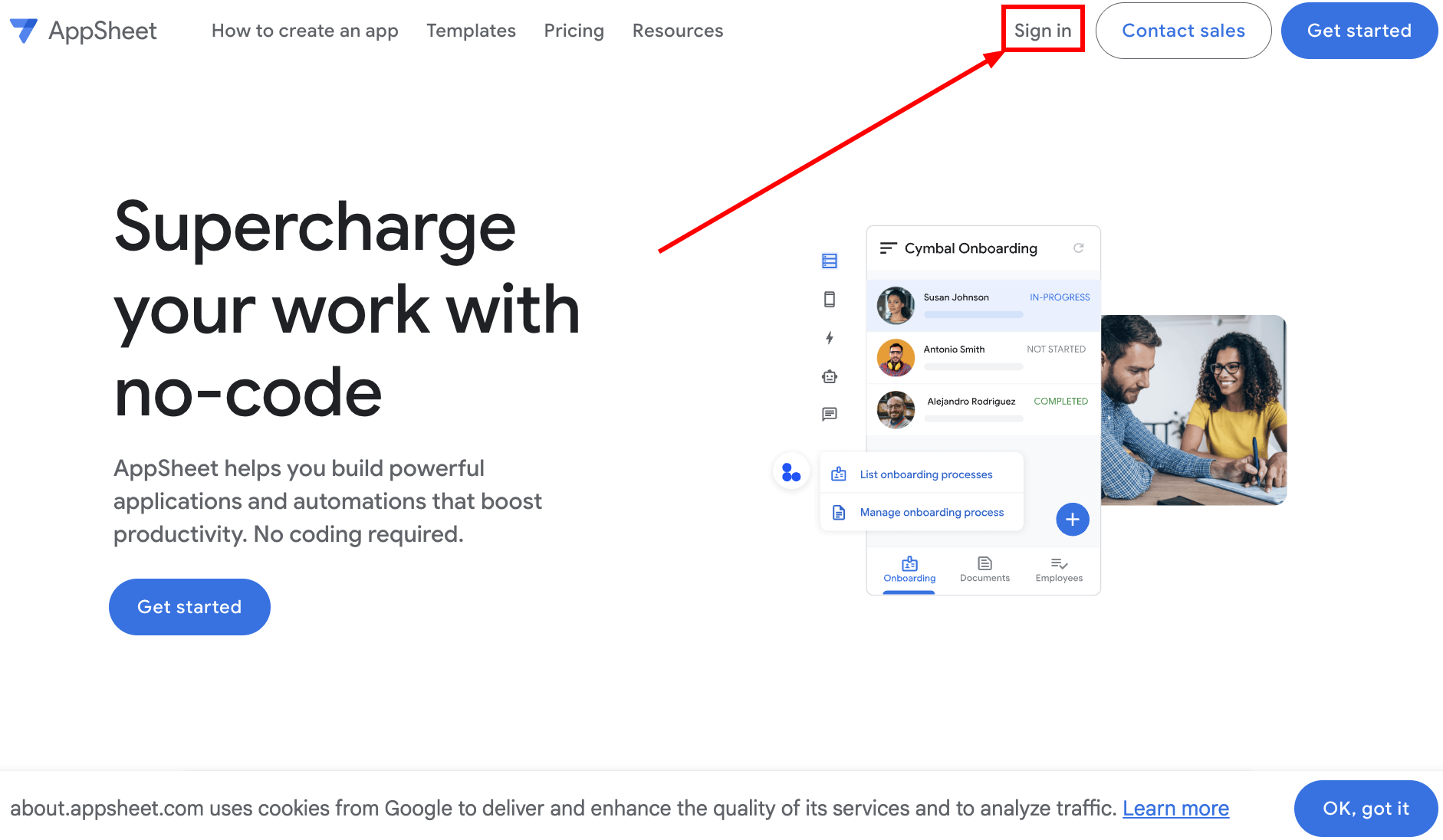
  1. Go to appsheet.com and sign in with your Google account
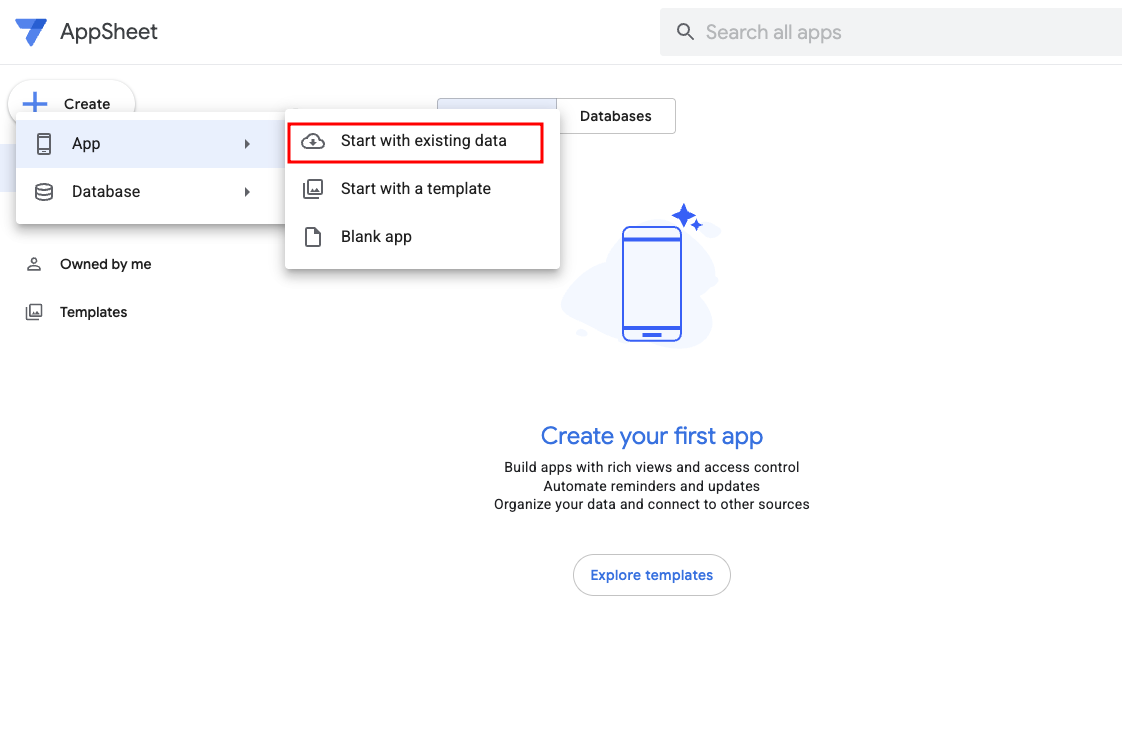
  2. Click the "Create" button at the top of the screen
  3. Select "App" β†’ "Start with existing data"
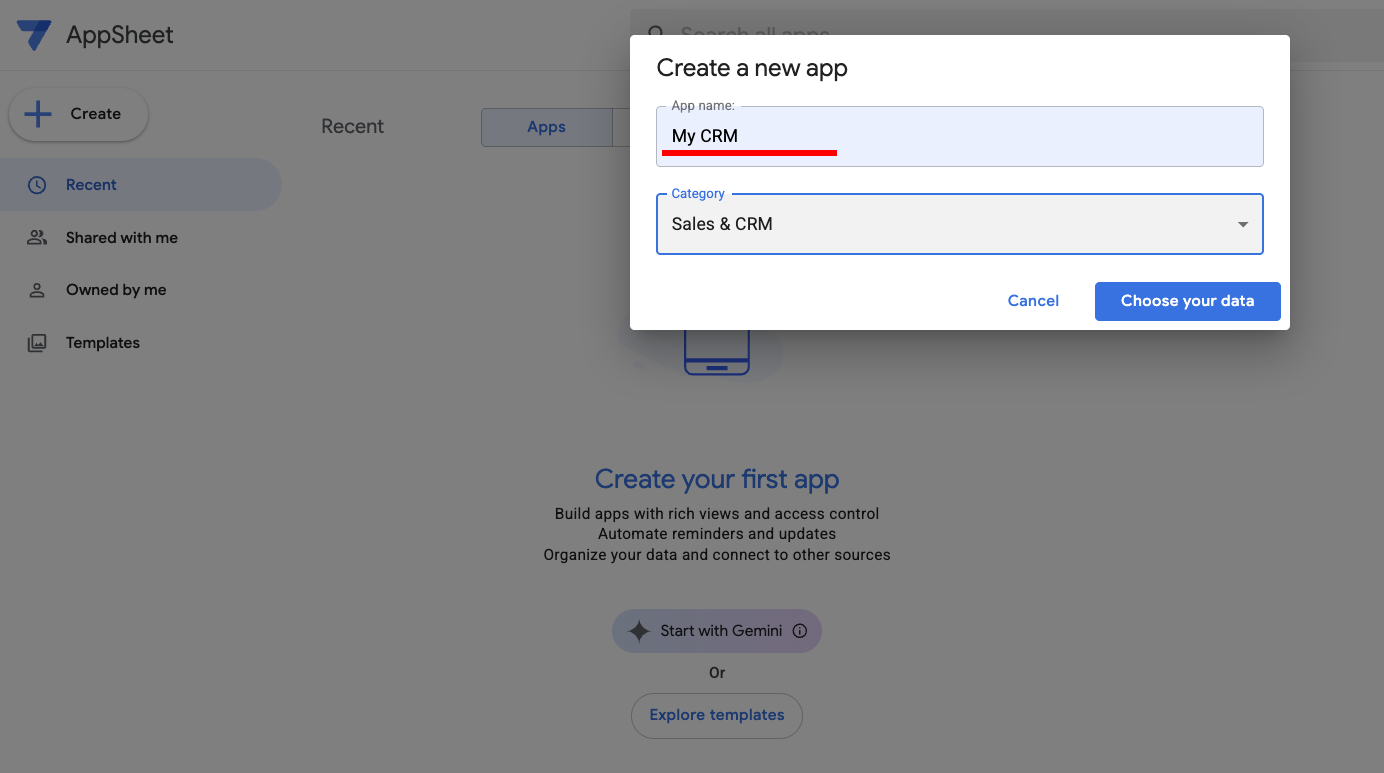
  4. Enter a name for your application
  5. Select a category (or leave default)
  6. Click "Choose your data" to select your Excel file

Important: The app name will be displayed to users, so choose a clear and descriptive name.

Creating a new app in AppSheet
3

Connect Excel File as Data Source

Connect your Excel file to the application:

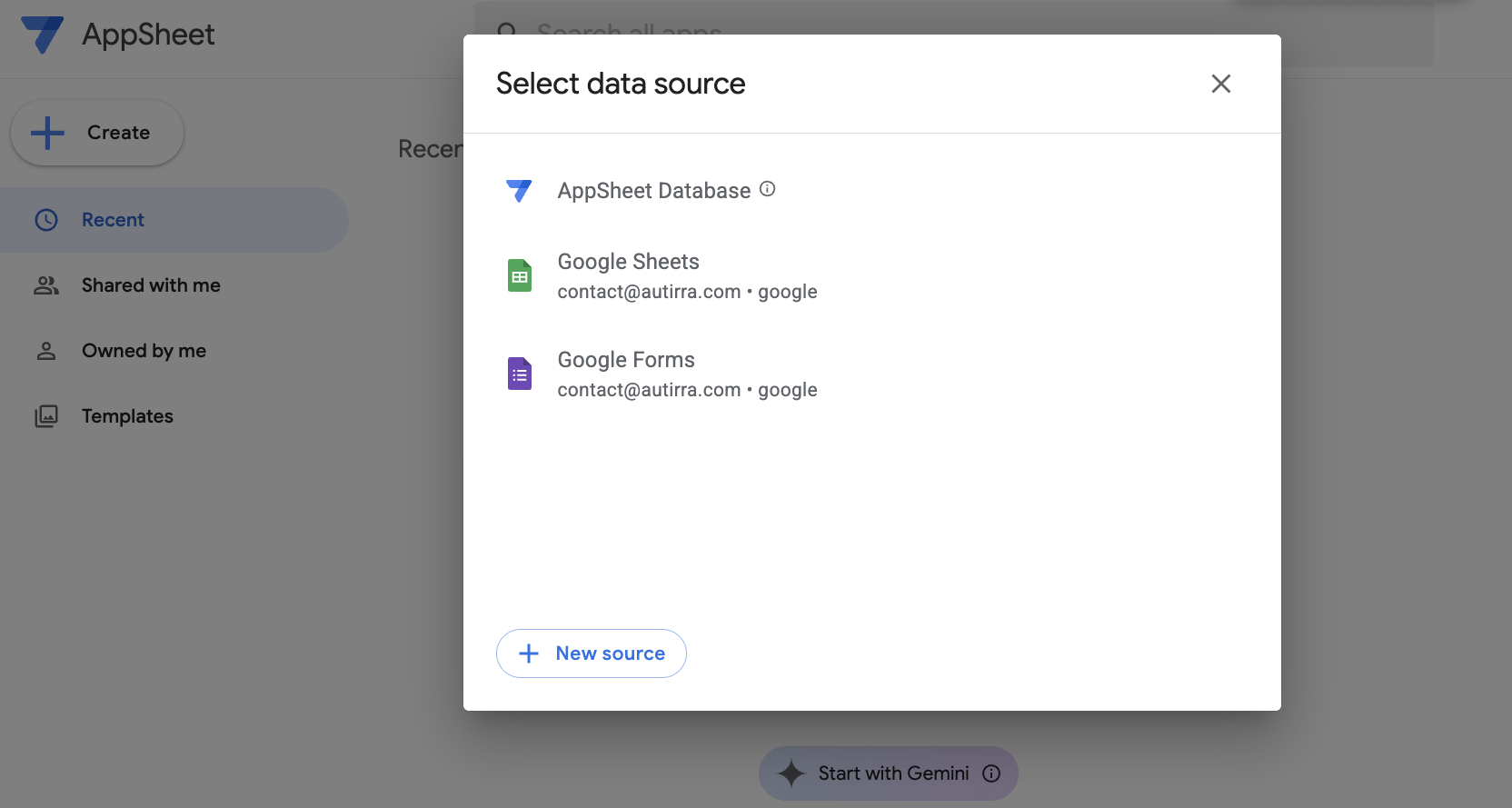
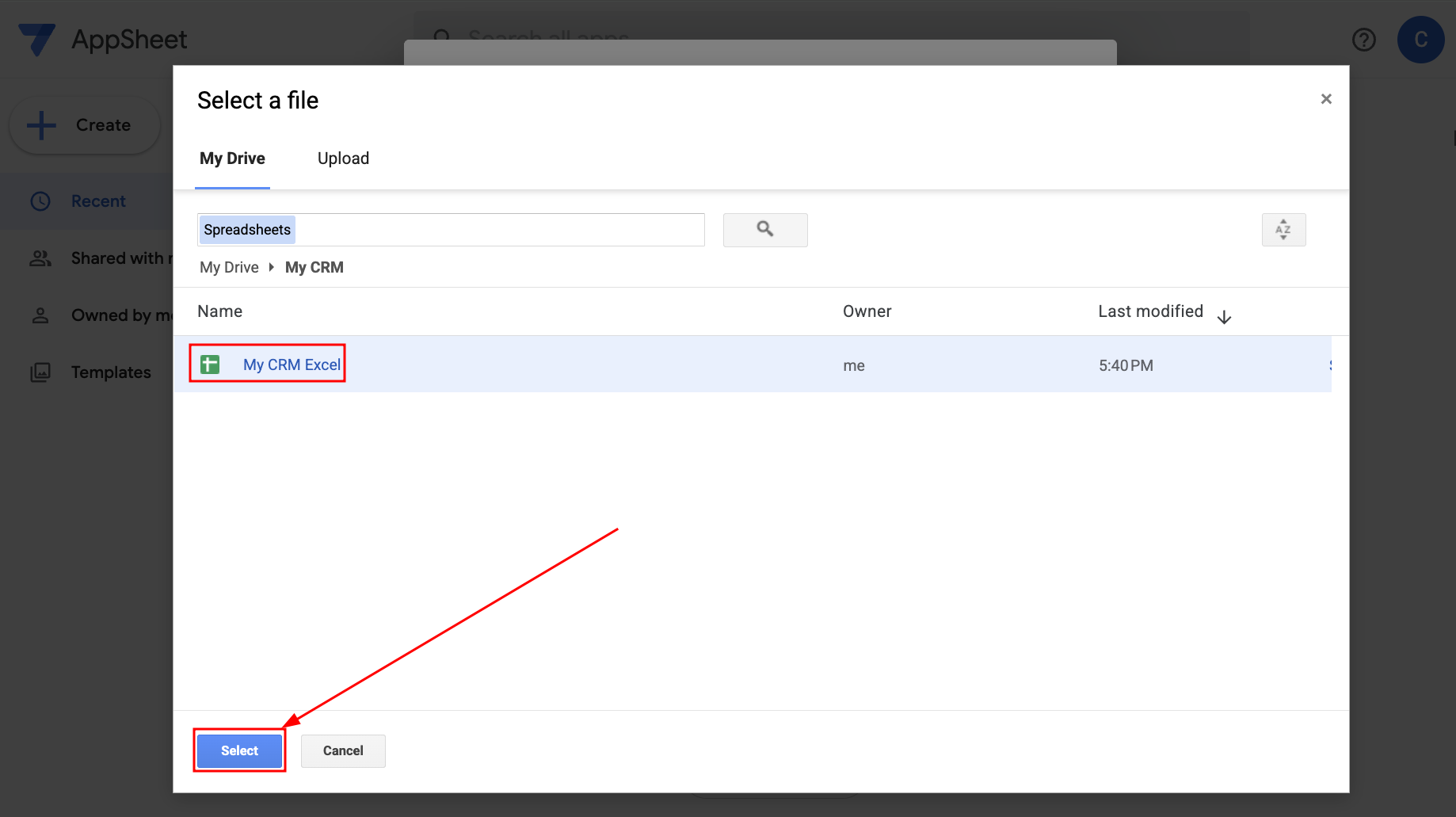
  1. On the data selection screen, click "Google Sheets"
  2. Find your Excel file in the list or use search
  3. Select the file and click "Select"
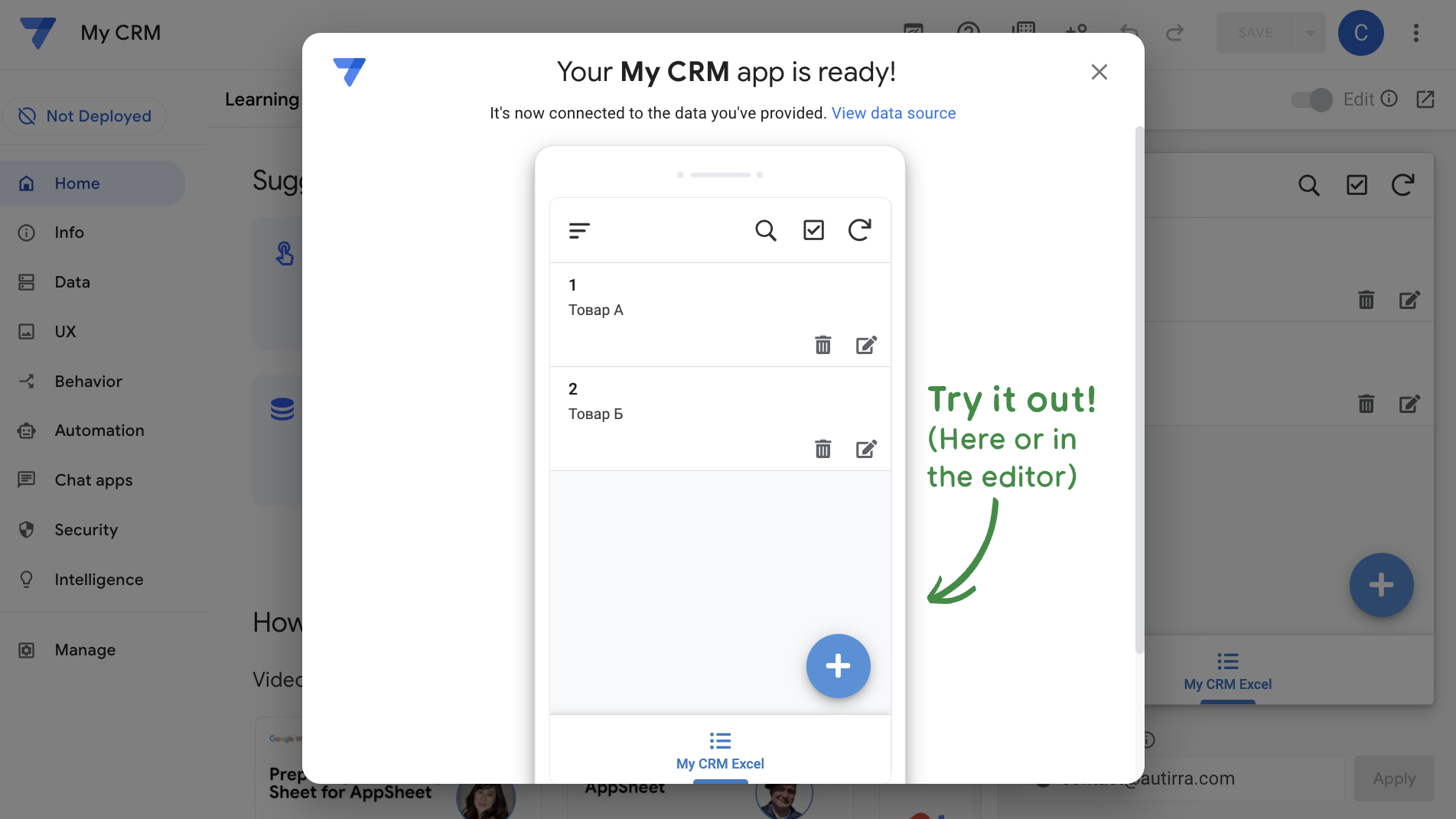
  4. AppSheet will automatically analyze the file structure
  5. Verify that tables and columns are correctly identified

Note: If your Excel file has multiple sheets, AppSheet will create a separate table for each sheet.

Connecting Excel file as data source
4

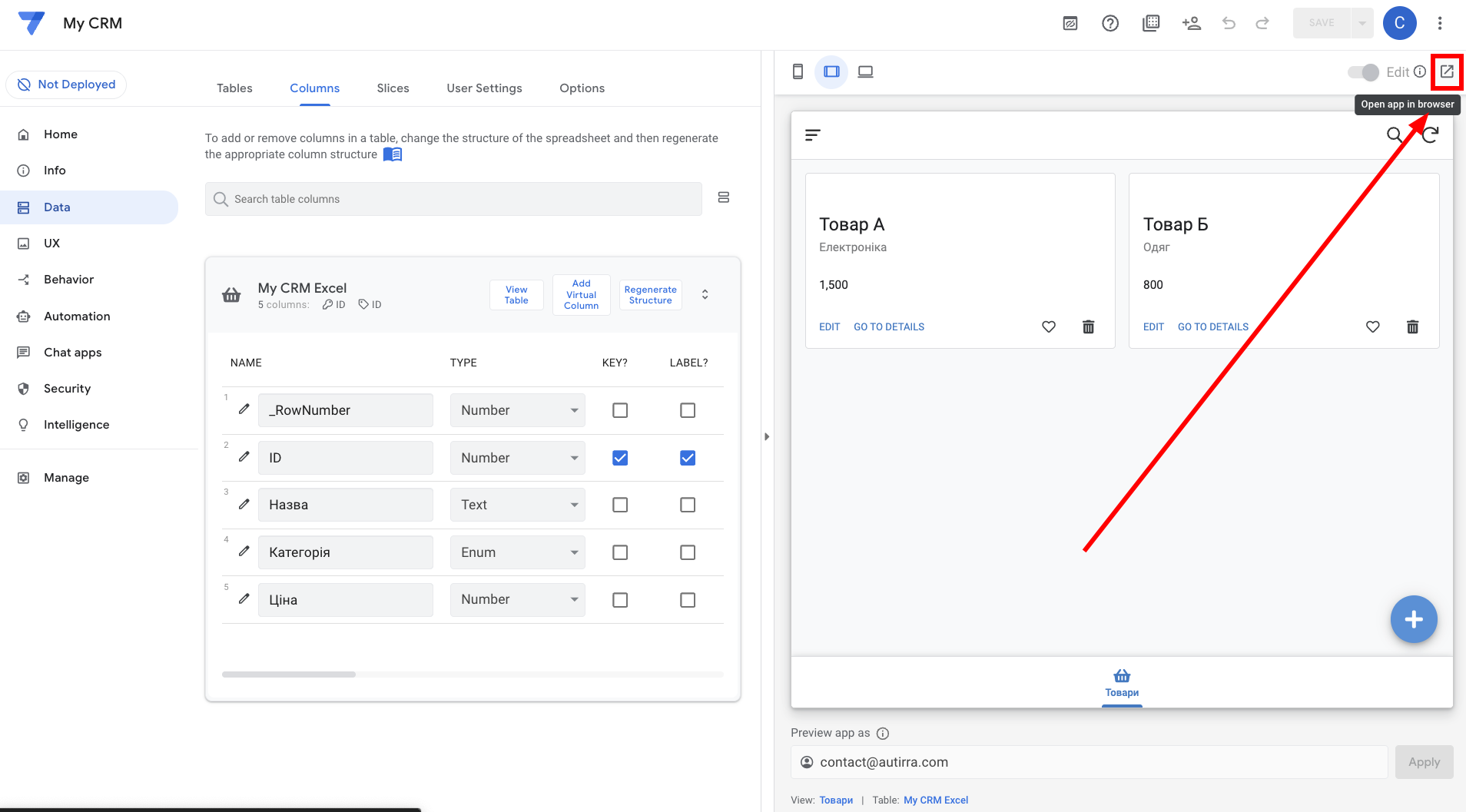
Configure Column Types

AppSheet automatically detects data types, but you should verify and adjust them:

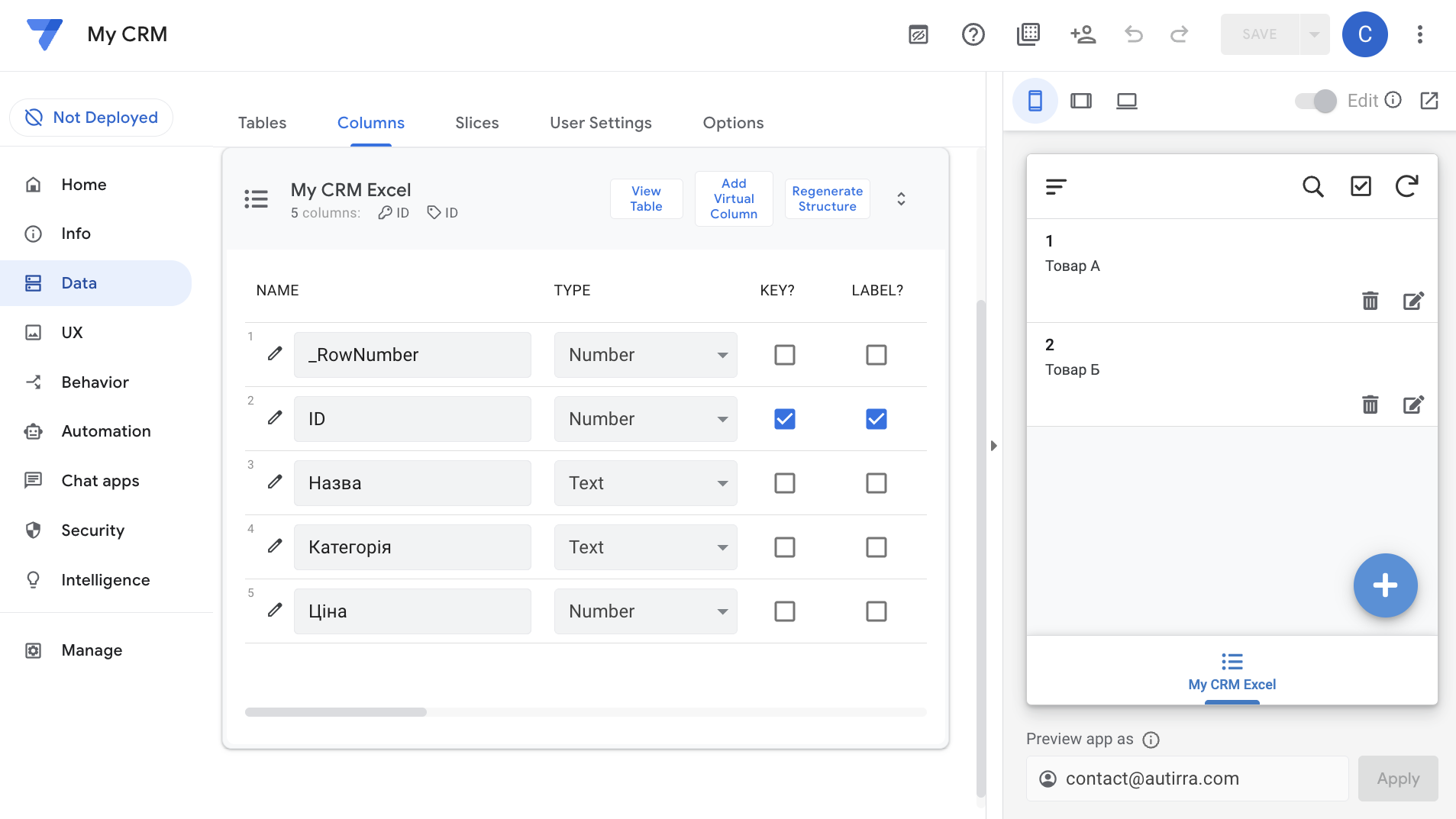
  1. Go to "Data" β†’ "Columns"
  2. Review each column and its data type
  3. Change types as needed:
    • Text β€” for text data
    • Number β€” for numbers
    • Date β€” for dates
    • Email β€” for email addresses
    • Phone β€” for phone numbers
    • Image β€” for images
  4. Mark the KEY column (unique identifier)
  5. Configure LABEL β€” the column that will display as record name

Tip: Proper data type configuration improves app functionality and data validation.

Configuring column types in AppSheet
5

Configure App Views

Now let's configure how data will be displayed to users:

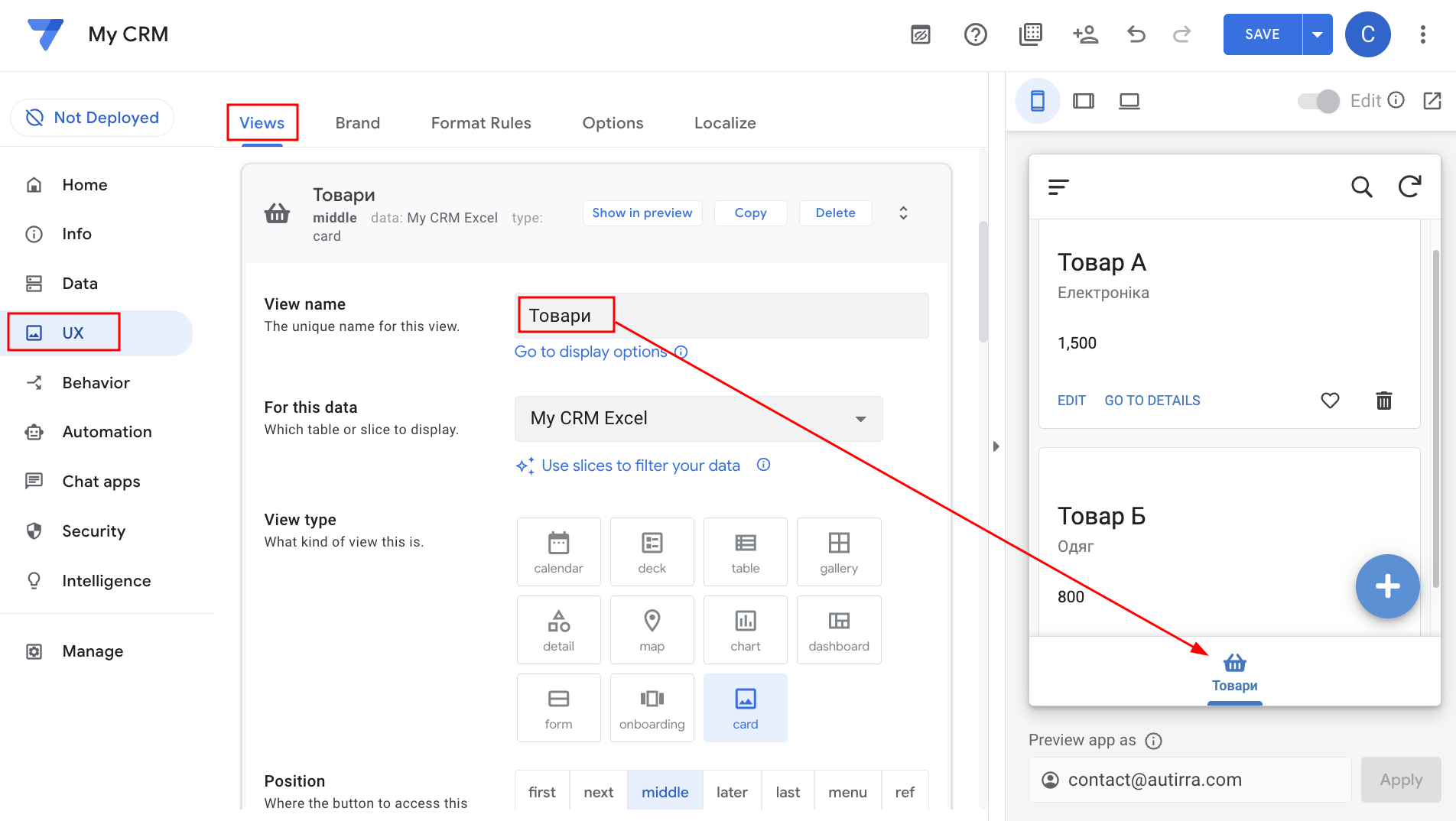
  1. Go to "UX" β†’ "Views"
  2. AppSheet has created basic views automatically
  3. Click on a view to edit it
  4. Choose display type:
    • Table β€” table view
    • Deck β€” cards
    • Gallery β€” gallery (for images)
    • Map β€” map (for geolocations)
    • Calendar β€” calendar (for dates)
  5. Configure which columns to display
  6. Add sorting and filters as needed
Configuring app views
6

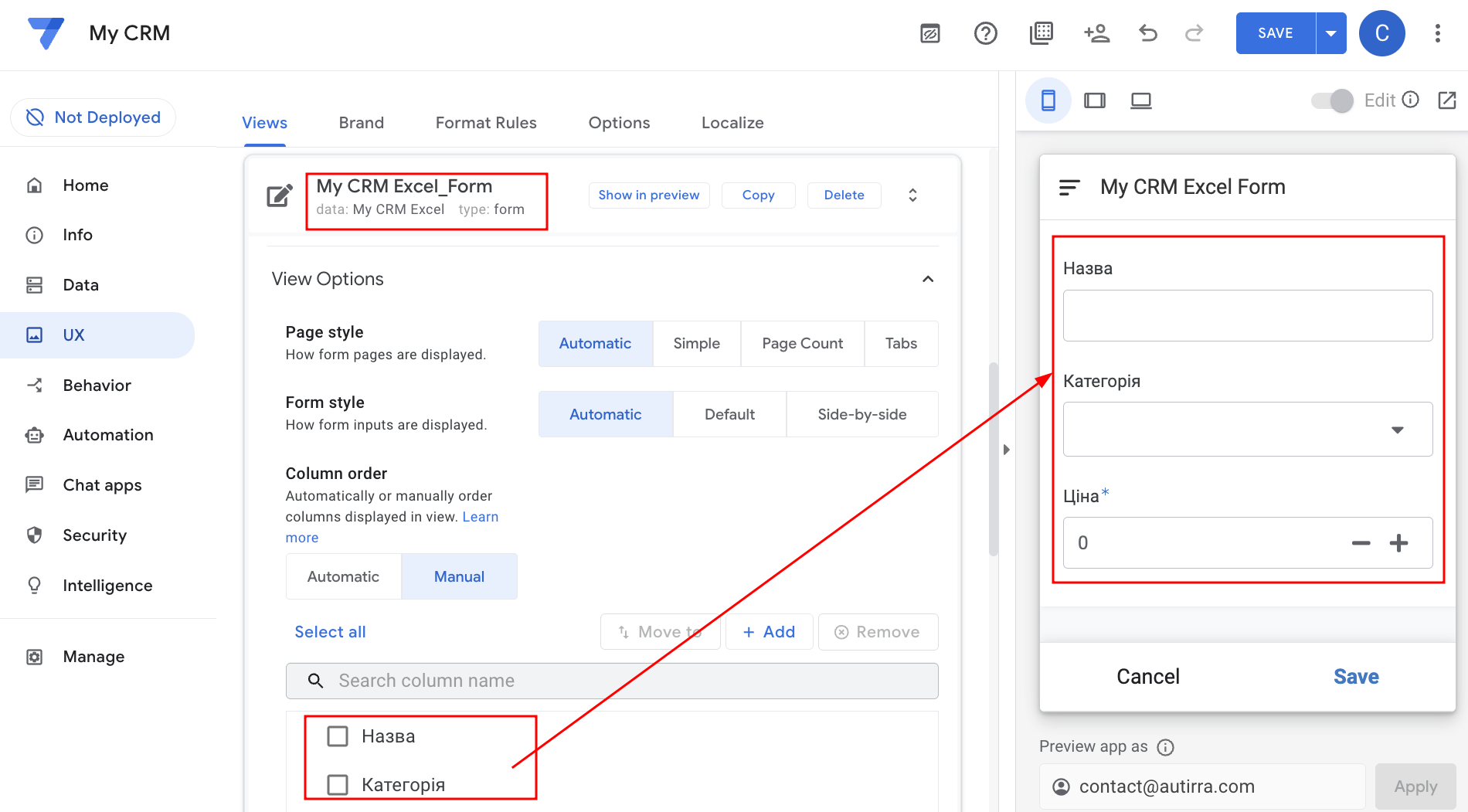
Configure Data Entry Forms

Create convenient forms for adding and editing data:

  1. Go to "UX" β†’ "Views" and find the form
  2. Or create a new form: "+ New View" β†’ "Form"
  3. Arrange field order (by dragging)
  4. For each field you can configure:
    • Display name β€” name users see
    • Description β€” field hint
    • Required β€” if field is mandatory
    • Show? β€” whether to show the field
  5. Add data validation as needed

Tip: Hide system fields (e.g., auto-generated IDs) to avoid confusing users.

Configuring data entry forms
7

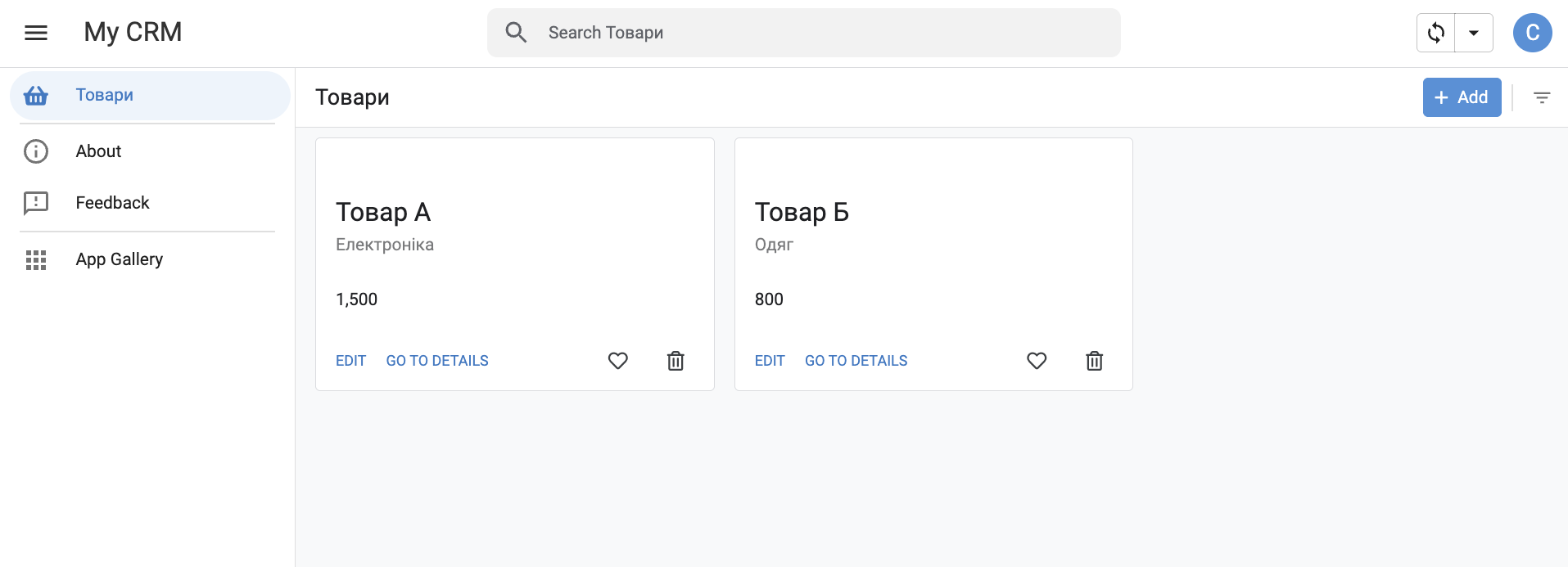
Test Your App

Final step β€” testing your app on different devices:

Testing in Browser (Web Version)

  1. Use the preview on the right side in the AppSheet editor
  2. Test all features:
    • Viewing data
    • Adding new records
    • Editing existing records
    • Deleting records

Testing on Mobile Devices

  1. Download the AppSheet app from App Store (iOS) or Google Play (Android)
  2. Sign in with the same Google account you used to create the app
  3. Your app will automatically appear in the list
  4. Test all features on your real device

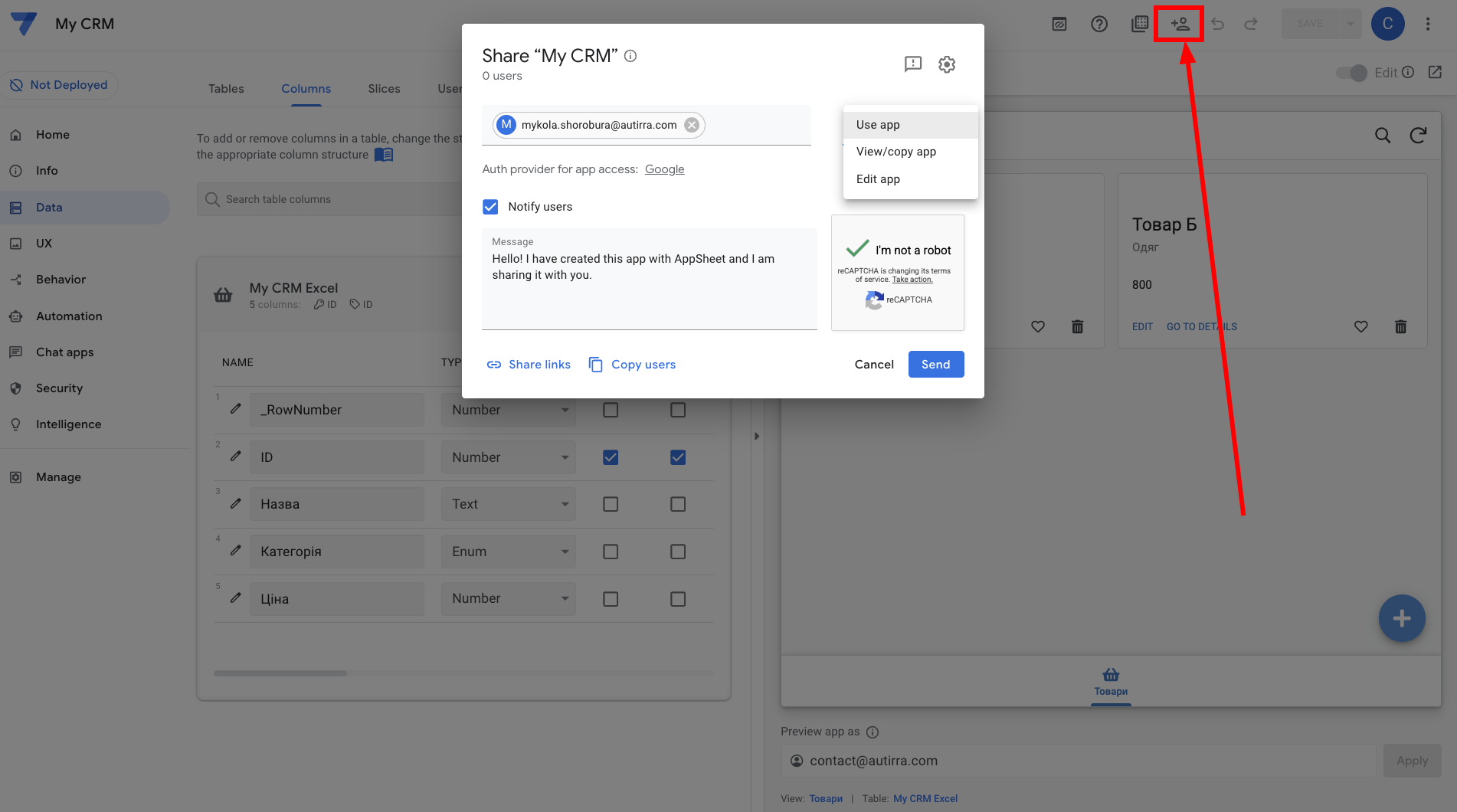
Adding Other Users

You can invite other users to test:

  1. Click the "Share" button at the top of the editor
  2. Enter email addresses of users you want to invite
  3. They will receive an invitation and can install AppSheet on their devices
Testing the app
Testing the app
Testing the app

Congratulations!

You have successfully created your first AppSheet application based on an Excel file!

What you've learned:

  • Preparing and uploading Excel file to Google Drive
  • Creating a new AppSheet application
  • Connecting a data source
  • Configuring column types and keys
  • Creating views and forms
  • Testing the app on different devices

Next steps:

  • Add automations (Actions and Automation)
  • Configure notifications and alerts
  • Create reports and dashboards
  • Connect additional data sources
  • Learn AppSheet formulas for advanced functionality

Our Previous Projects

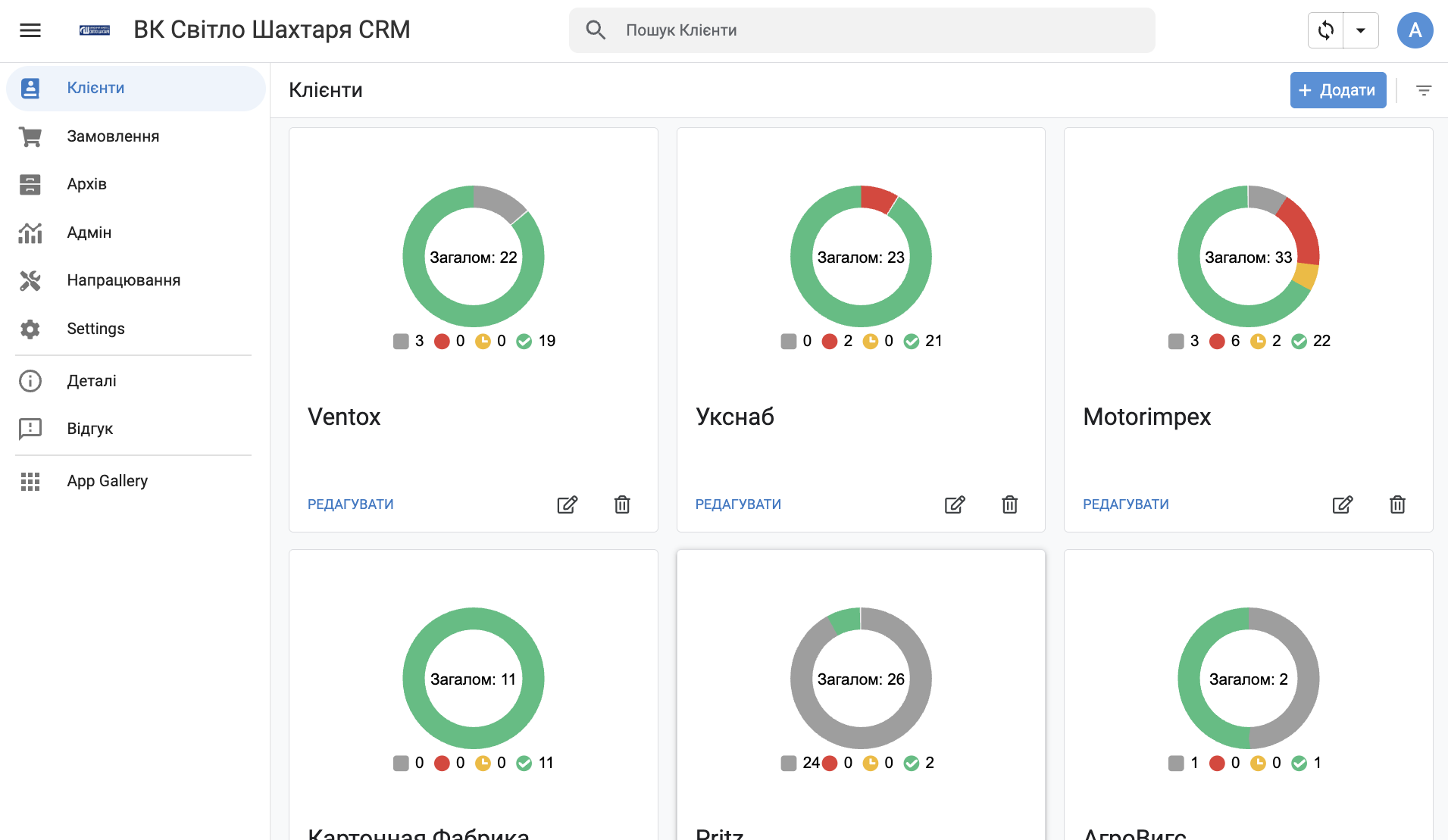
VK Svitlo Shachtarja CRM
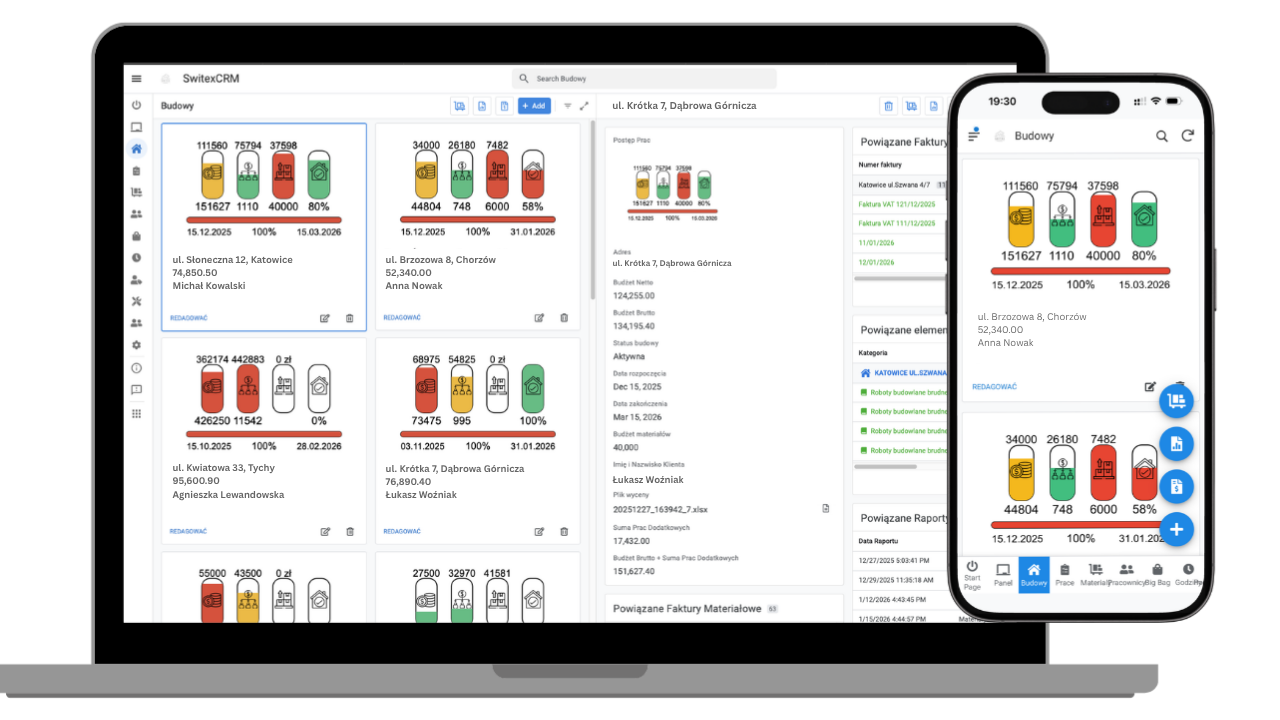
Switex CRM
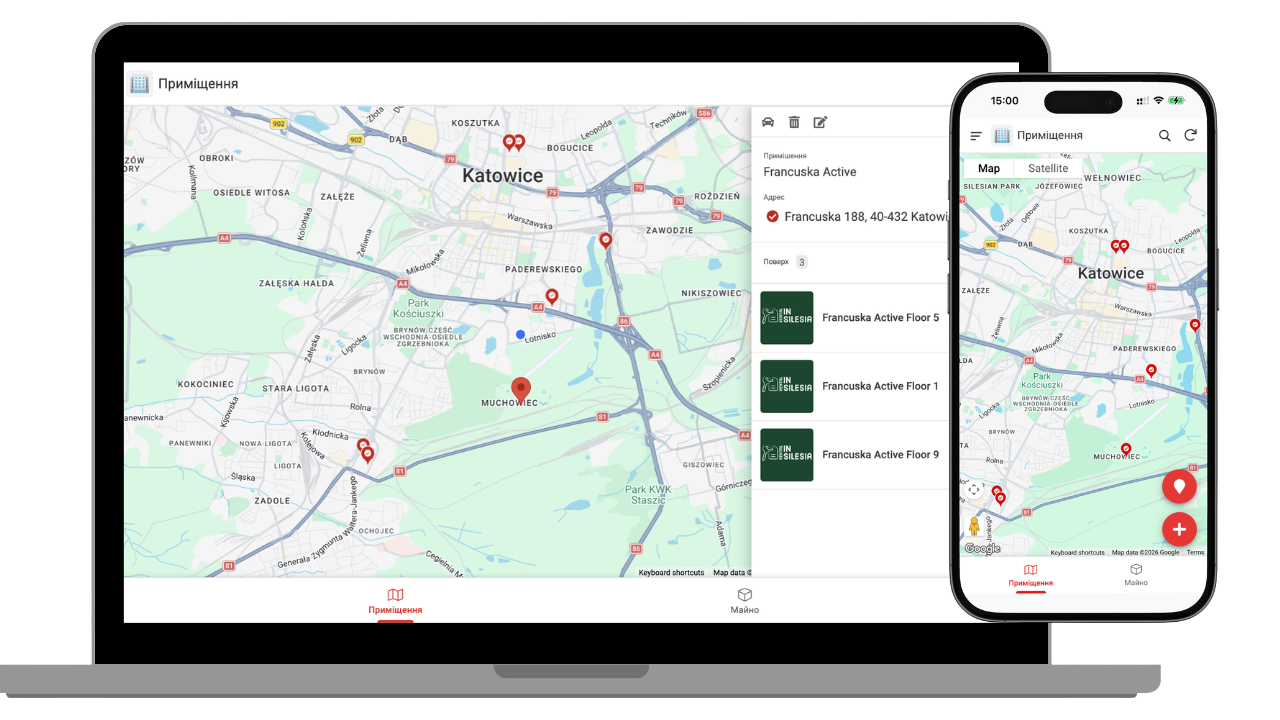
Rent in Silesia CRM
VK Svitlo Shachtarja CRM
Switex CRM

Company Number: 9542845879 | VAT-5UE: PL9542845879 | Registered: Poland, Katowice 40-507 Francuska Str. 92a

Β© 2026 Autirra. By using our service, you accept our terms and conditions.